Set VIP Member Exclusive Prices 
Configure exclusive product prices for different VIP member groups.
Advanced | PLUS | Enterprise Set VIP Member Group
Overview
Please make sure you have set up customer VIP groups before configuring member-exclusive prices.
- If a new VIP rule is published, make sure to reconfigure the member-exclusive prices to ensure the correct prices are applied.
- Set exclusive prices for different VIP groups.
- Manage VIP prices flexibly through single edit, bulk edit, or Excel import.
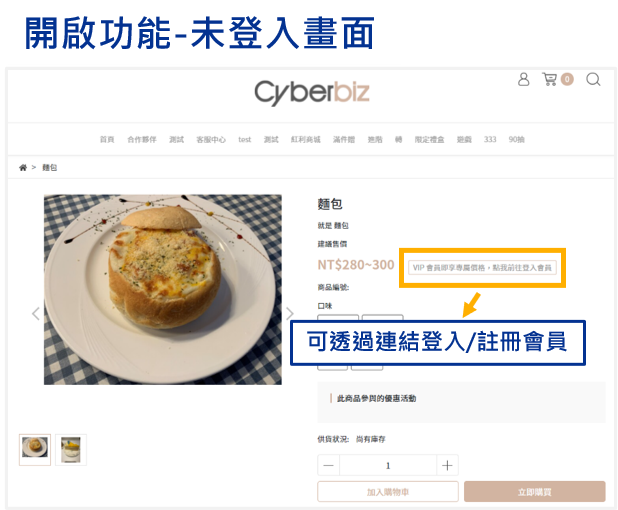
- Enable VIP promotion hints for non-logged-in visitors to encourage login for special offers.
Operation Steps
Set Member Exclusive Price (Single Product)
- Log in to your CYBERBIZ Admin Panel, then go to Products → All Products.
- Select the product you want to configure and go to the Product Info tab.
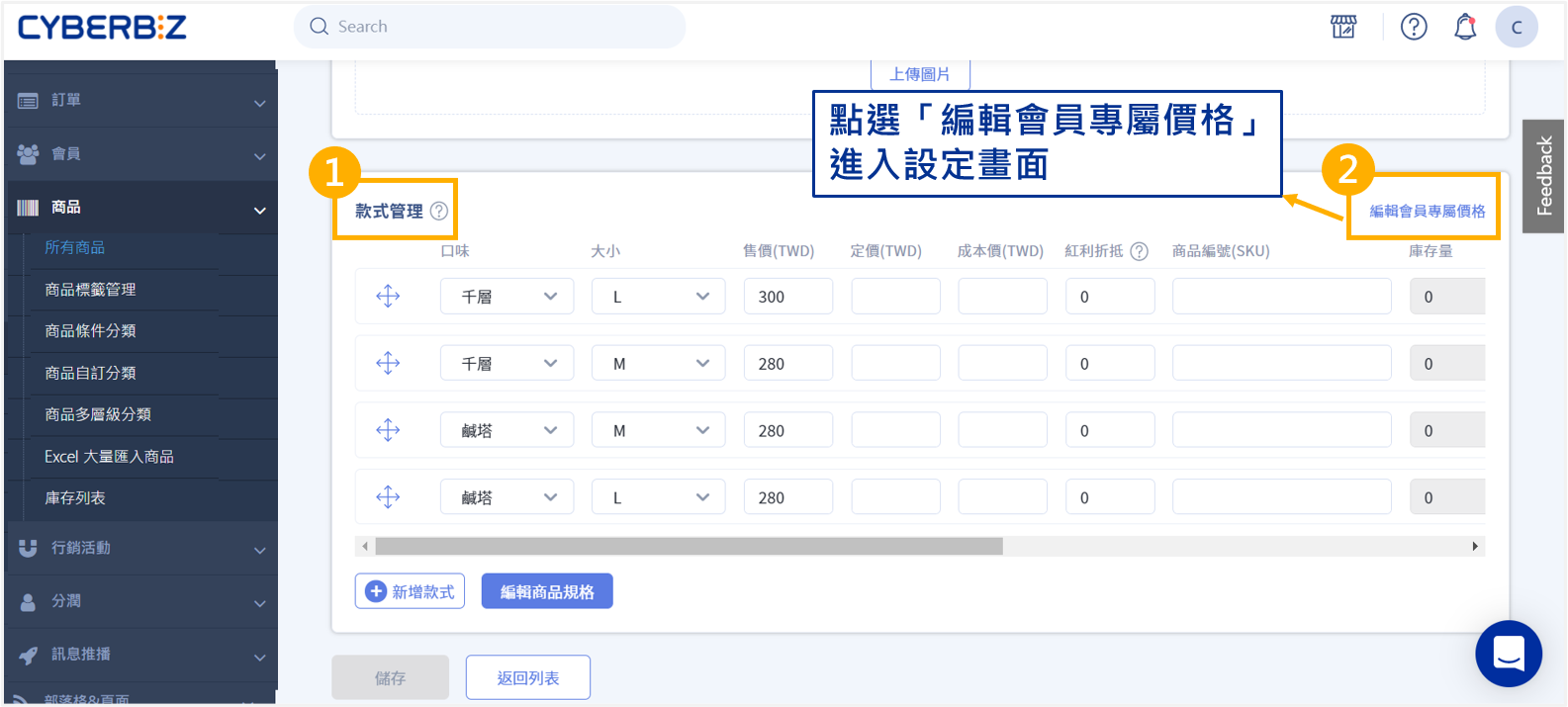
- In the Variant Management section, click Edit Member Price to enter the “Edit Member Price” page.
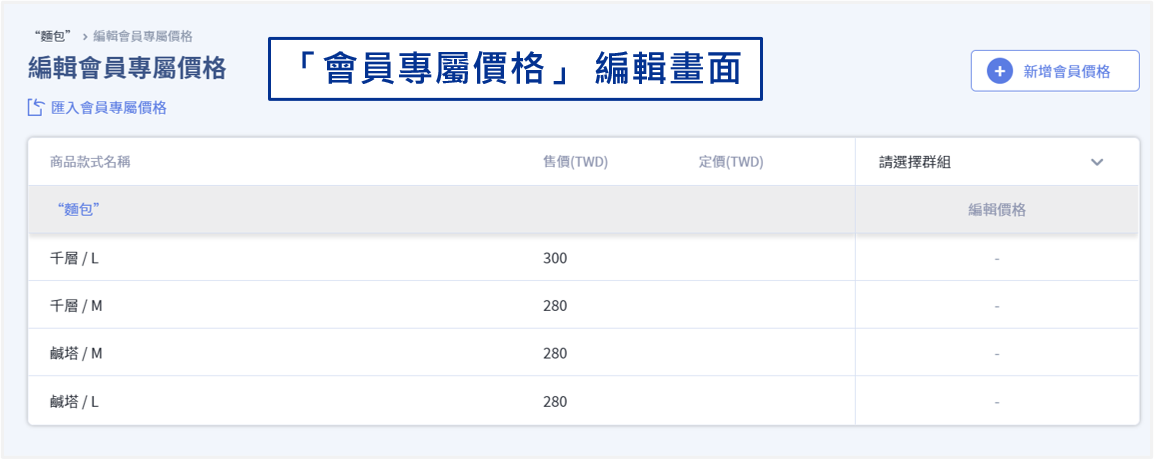
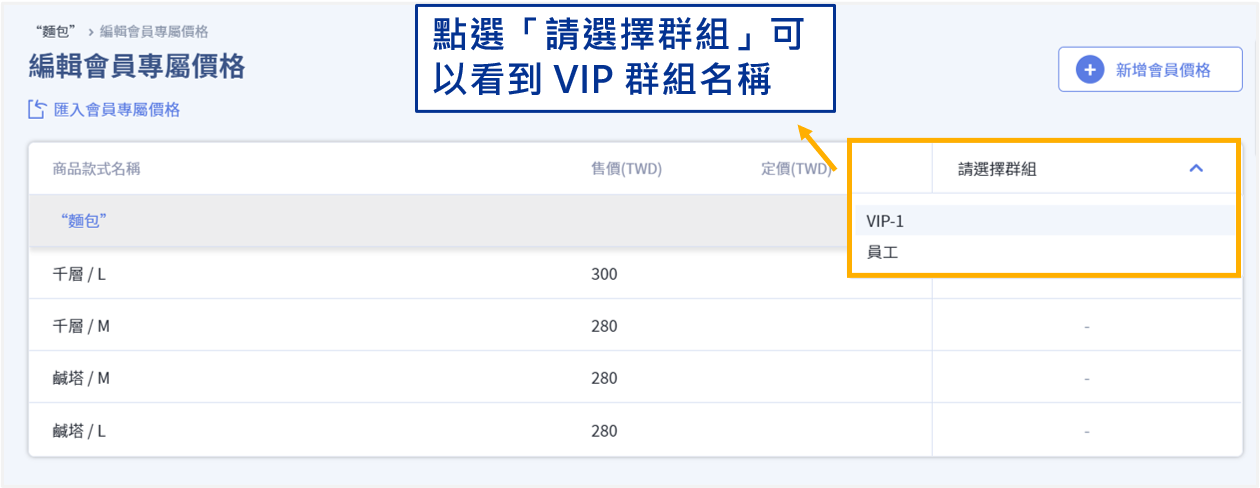
- Choose the desired VIP group from the dropdown list.
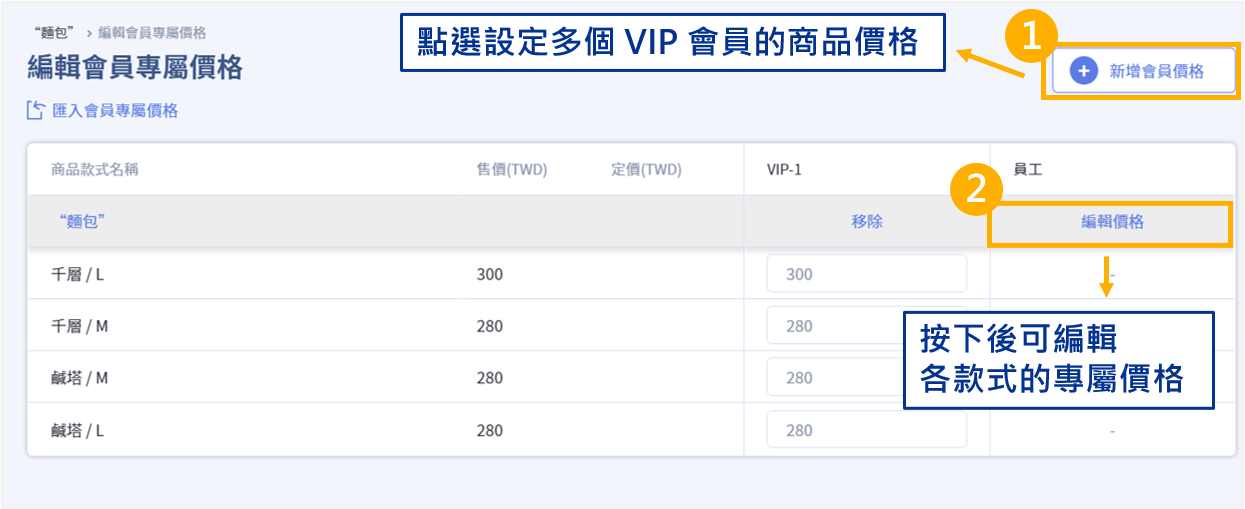
- Click Add Member Price to add more group fields if you wish to set multiple group-specific prices for the same product.
- Click Add Member Price, select a VIP group, and click Edit Price to input the exclusive price.
Each variant can have a different price. If not specified, the system will use the product’s regular selling price by default.
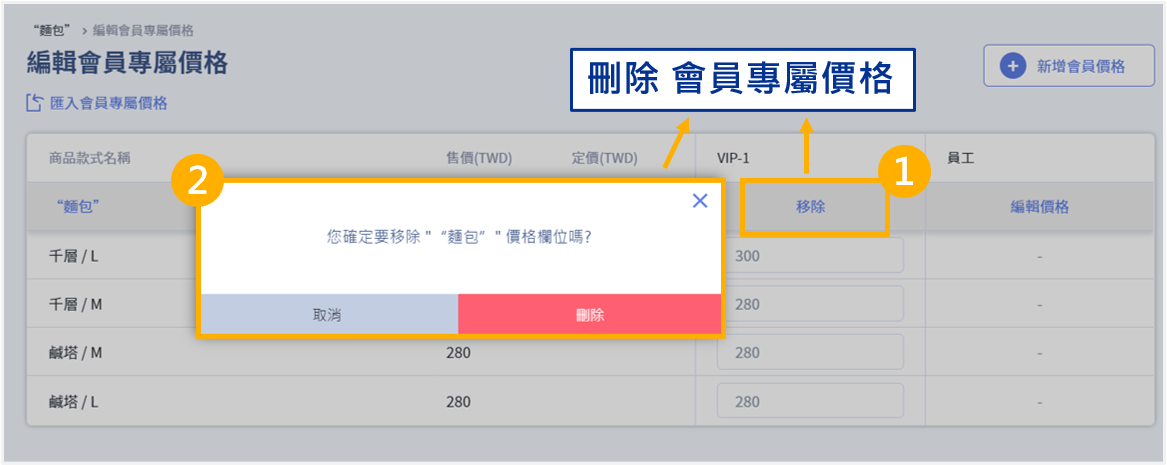
- To remove a VIP group’s exclusive price, click Remove beside the field.
- Click Delete to confirm removal.
Bulk Edit Member Exclusive Prices
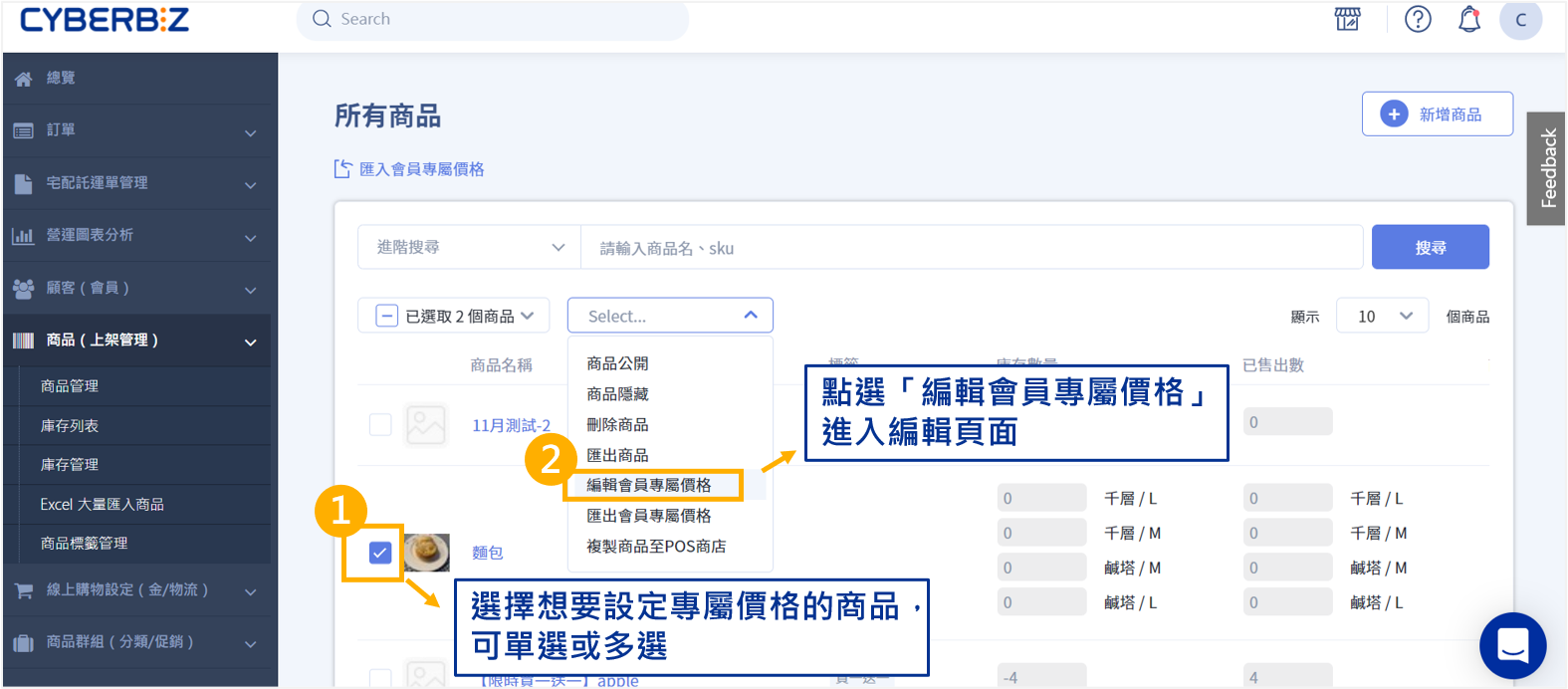
- Log in to your CYBERBIZ Admin Panel, then go to Products → All Products.
- Select the products you want to edit (single or multiple selection supported).
- Click the Actions Menu , then select Edit Member Prices to open the edit page.
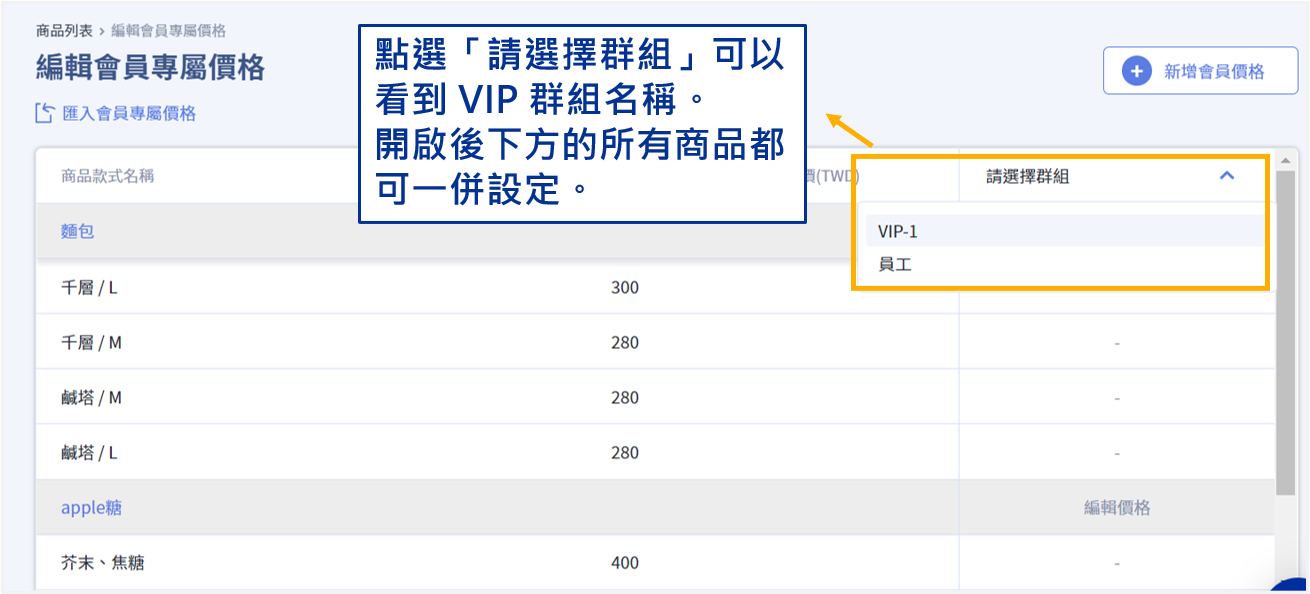
- Choose the desired VIP group from the dropdown list.
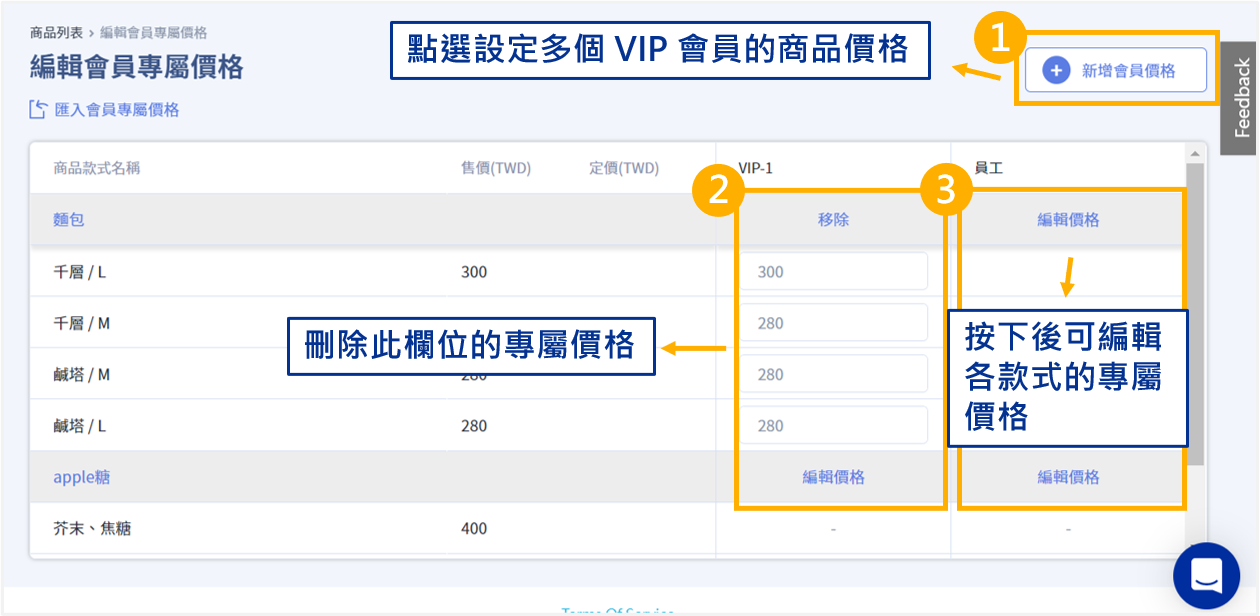
- Click Add Member Price, select the VIP group, and input the exclusive price.
- To delete a VIP group price field, click Remove beside the field.
Each variant can have a different price. If not specified, the system will use the product’s regular selling price by default.
Import or Edit Member Prices via Excel
- Log in to your CYBERBIZ Admin Panel, then go to Products → All Products.
- Click the Actions Menu , then select Export Member Prices.
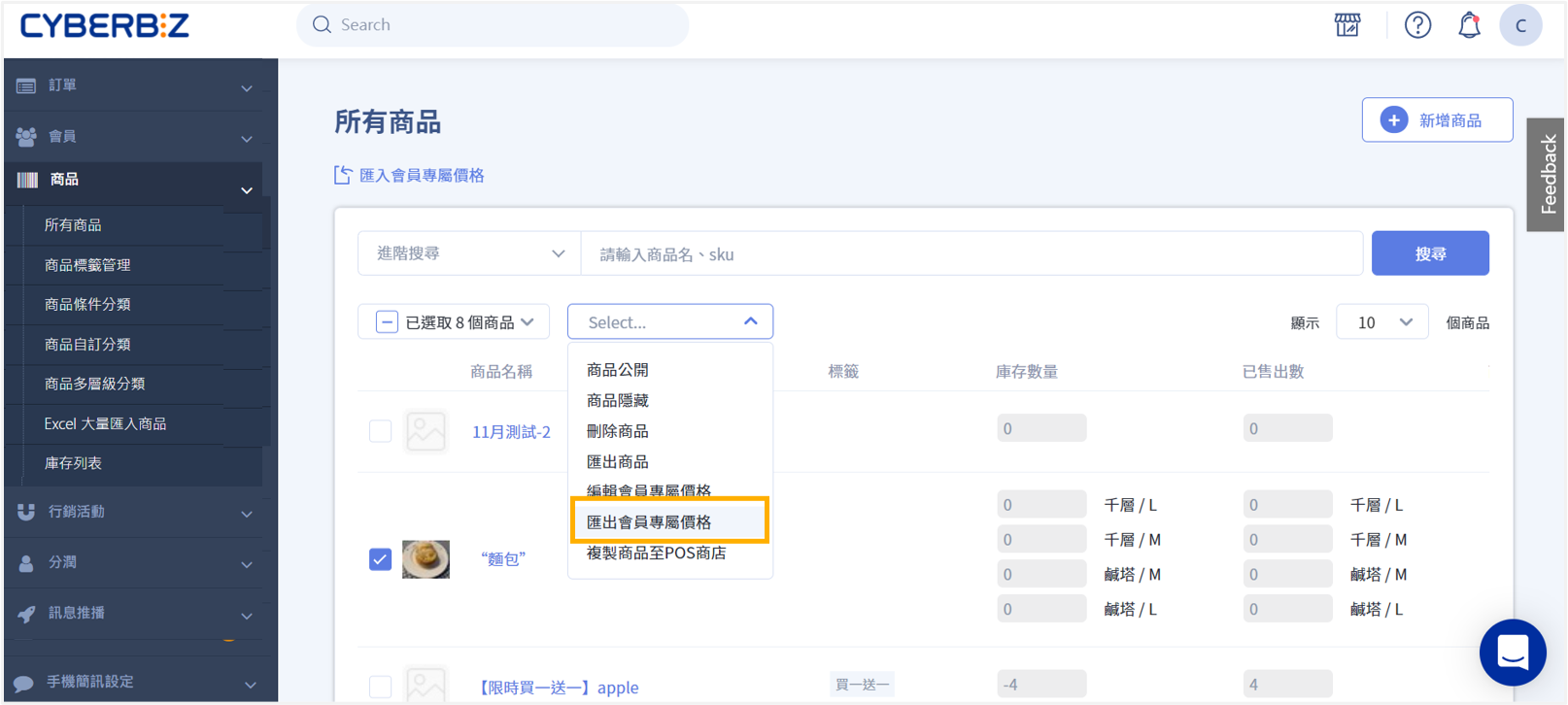
- The system will send an Excel file to your registered email address.
- Download and open the Excel file, then fill in the exclusive prices in the corresponding columns. Save the file after editing.
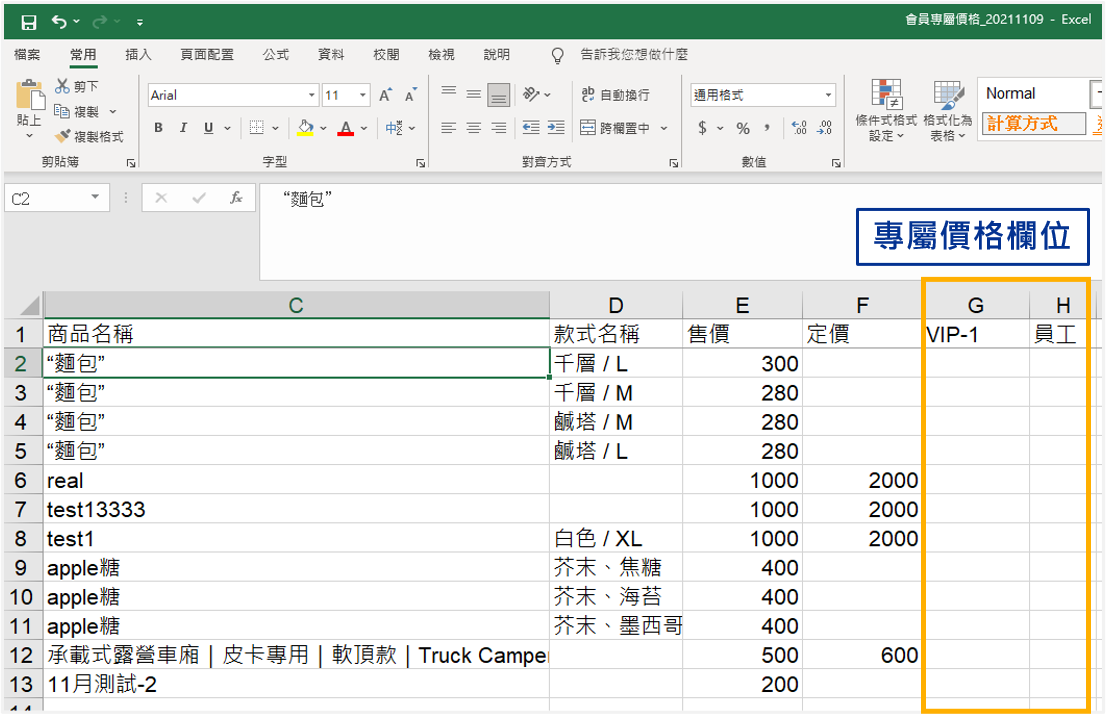
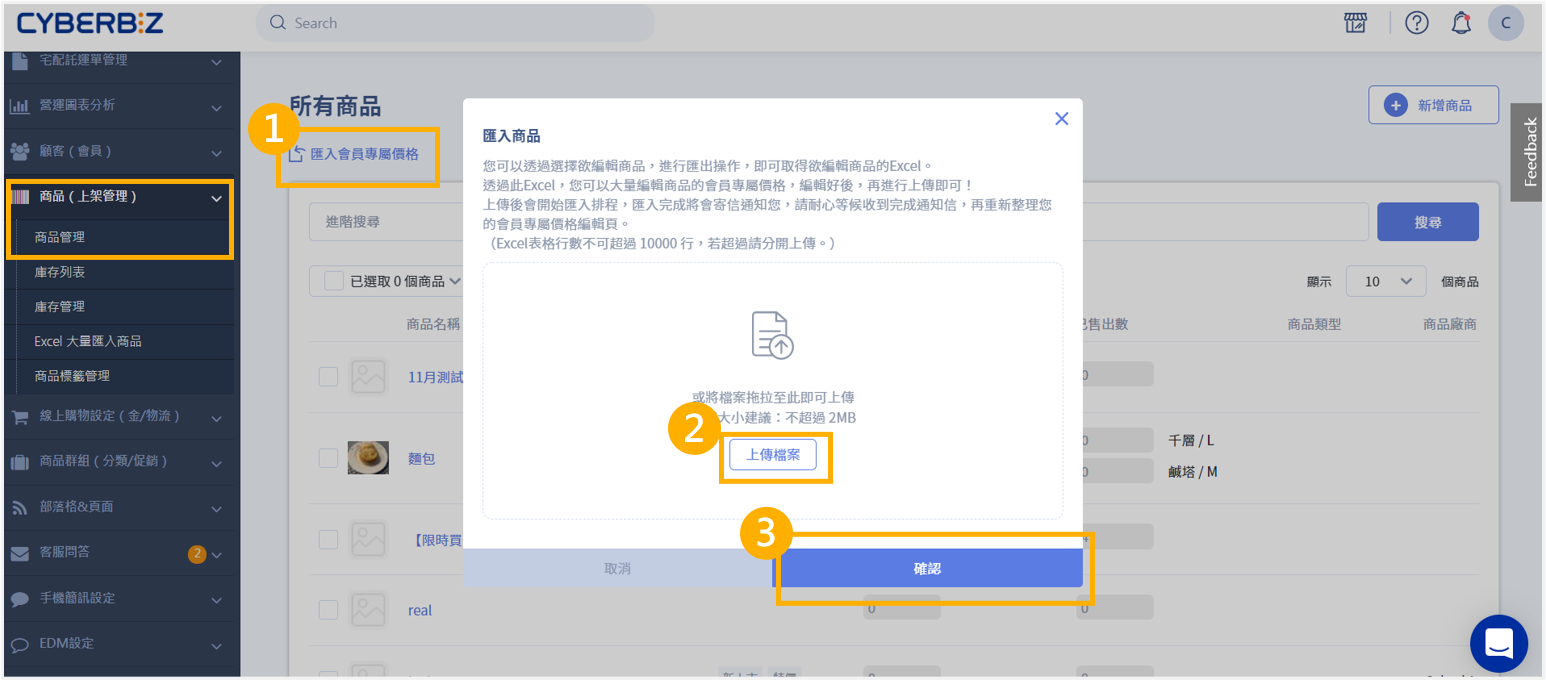
- Return to Products → All Products in the Admin Panel.
- Click the Actions Menu , then select Import Member Prices.
- Upload the edited Excel file and click Confirm.
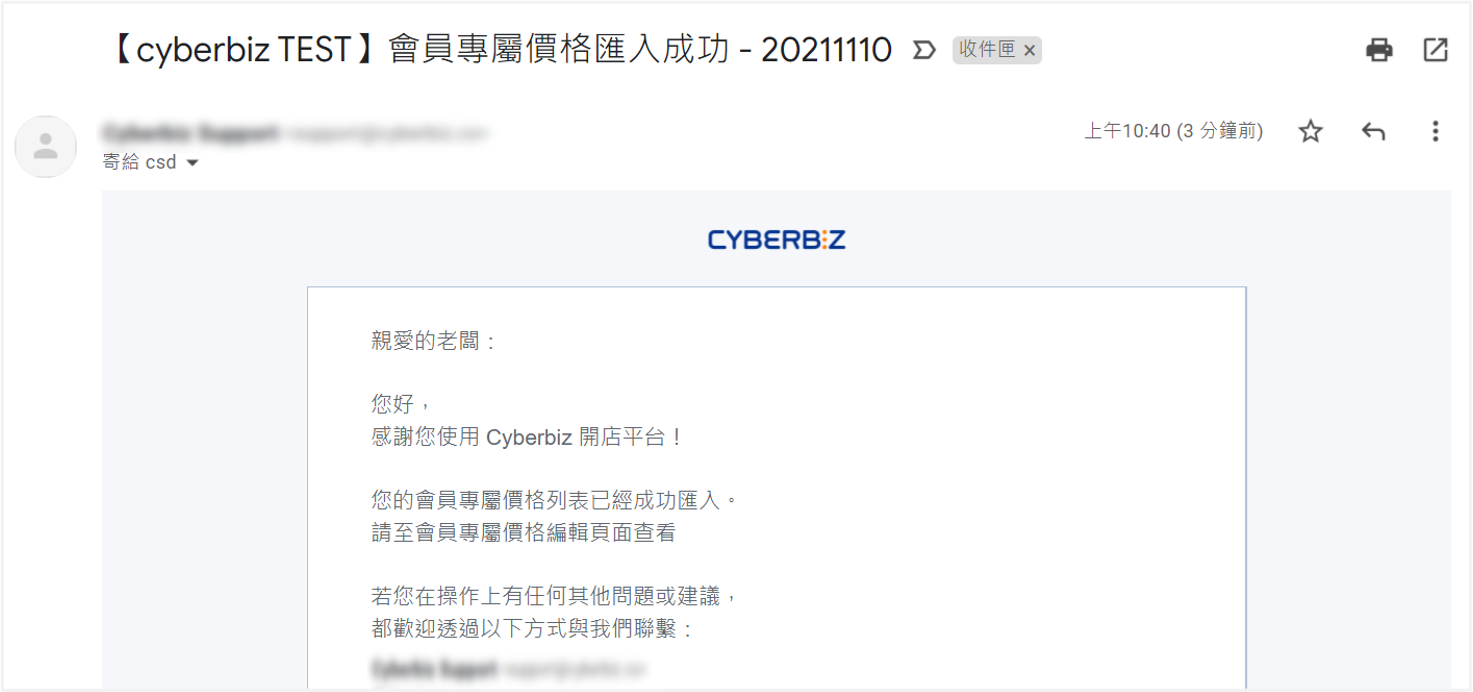
- Once the upload is successful, the system will send a confirmation email to your inbox.
Advanced Settings
Show VIP Tag for Non-Logged-in Visitors
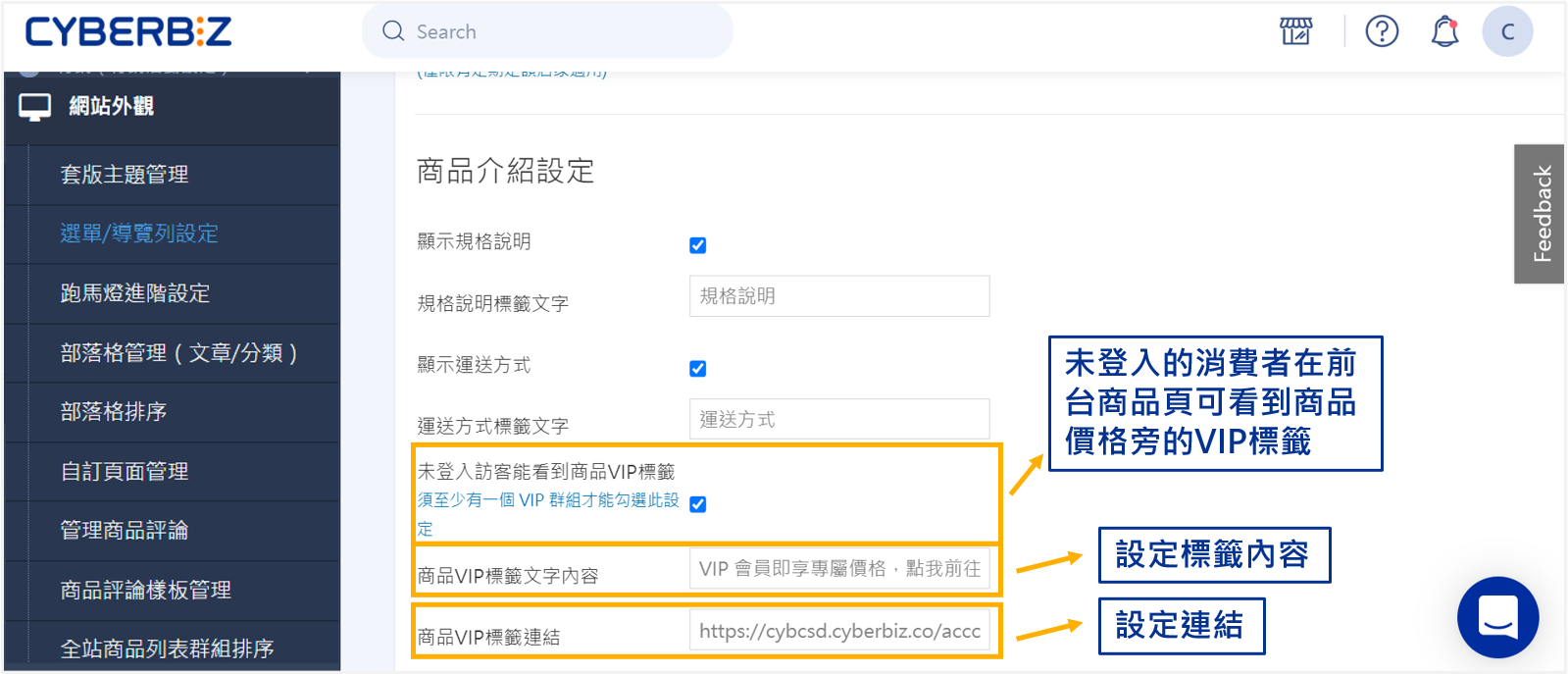
This feature reminds unregistered or logged-out users that logging in as a VIP member can grant them access to special pricing.
- Log in to your CYBERBIZ Admin Panel, then go to Website Appearance → Theme Management → Website Settings.
- Switch to the Product Page tab and find the Basic Settings section.
- Enable Show Member Price Tag.
If disabled, non-logged-in visitors will not see any tag hint on the product page. - In the VIP Tag Link field, you can set a URL leading to the login or sign-up page to guide users to register.
Display for Logged-in Members
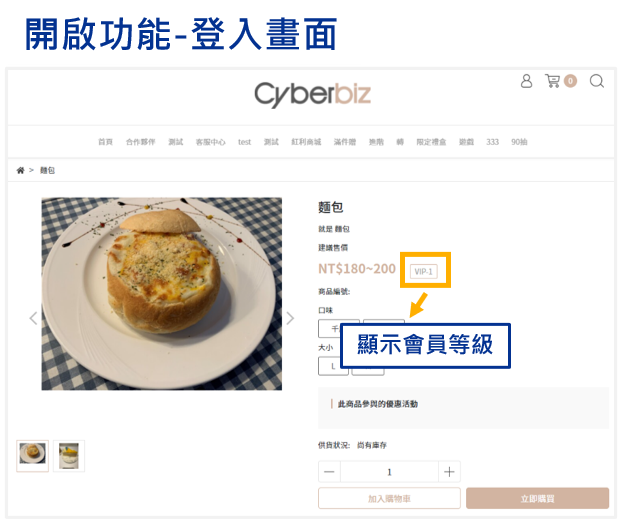
When a logged-in customer belongs to a VIP group with an exclusive price set for a product, the product page will display the special price along with the member’s VIP group name.
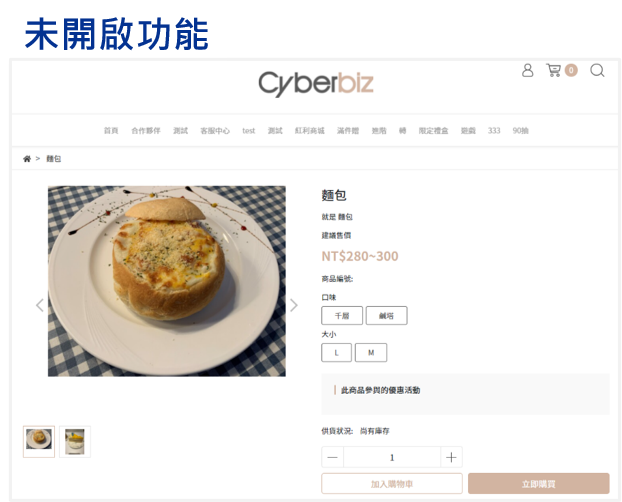
The product page displays a login/register link.
The product page shows the member’s group level.
FAQs
How will the product page display after setting member-exclusive prices?
When a member logs in, if their VIP group has a special price set, the product page will display that exclusive price.
If not logged in, the regular price is shown by default.
You can enable the Non-logged-in VIP Tag Display feature to hint customers to log in for discounts.
- Logged-in members: The system automatically displays the VIP price.
- Non-logged-in visitors: Enable the Non-logged-in VIP Tag Display and link it to the login/register page.
If a product has multiple VIP group prices, how does the system decide which one to display?
The system usually prioritizes the highest VIP level or follows an internal hierarchy to determine which price is shown.
Please refer to official CYBERBIZ documentation or contact customer support to confirm the price priority logic among multiple VIP groups.